The Problem
Managing tasks manually creates friction. Ideas often arrive as quick thoughts, voice notes, or unstructured text, but turning them into an organized productivity system requires several manual steps: transcribing, extracting tasks, deciding whether they belong to an existing project, creating new projects, setting deadlines, and keeping everything consistent in Notion.
I needed a system that could receive a natural language input and decide automatically what to do with it: create inbox tasks, attach tasks to existing projects, or create new projects with their related tasks.
The Solution
AI Task Automation is a self-hosted n8n workflow that receives text or audio input, processes it with OpenAI, and creates structured tasks and projects inside Notion.
The workflow supports three types of output in a single request:
- Inbox tasks when no project relationship is needed.
- Tasks linked to existing Notion projects when the AI detects a semantic match.
- New Notion projects with related tasks when the user explicitly requests a new project.
The system also returns a clean response message and logs each successful execution in Google Sheets.
Stack and Architecture
The automation is built with n8n self-hosted on a VPS, using OpenAI for language understanding, Notion as the task and project database, and Google Sheets as the execution log layer.
- Self-hosted deployment: n8n runs on a dedicated VPS, keeping the automation independent from hosted automation platforms.
- Audio and text input: The workflow accepts both text and audio. Audio is transcribed before being normalized into the same message structure as text.
- Project-aware AI context: Before calling OpenAI, the workflow fetches the current Notion projects and sends a normalized project list to the model.
- Structured JSON output: The AI response is parsed into a strict structure with inbox tasks, existing project matches, and new projects.
- Notion actions: The workflow creates standalone tasks, adds tasks to existing projects, or creates new projects and attaches their tasks.
- Execution logging: Each successful run is logged in Google Sheets with task counts, project counts, status, and response message.
- Global error handling: A separate n8n error workflow captures failed executions and stores error details for debugging.
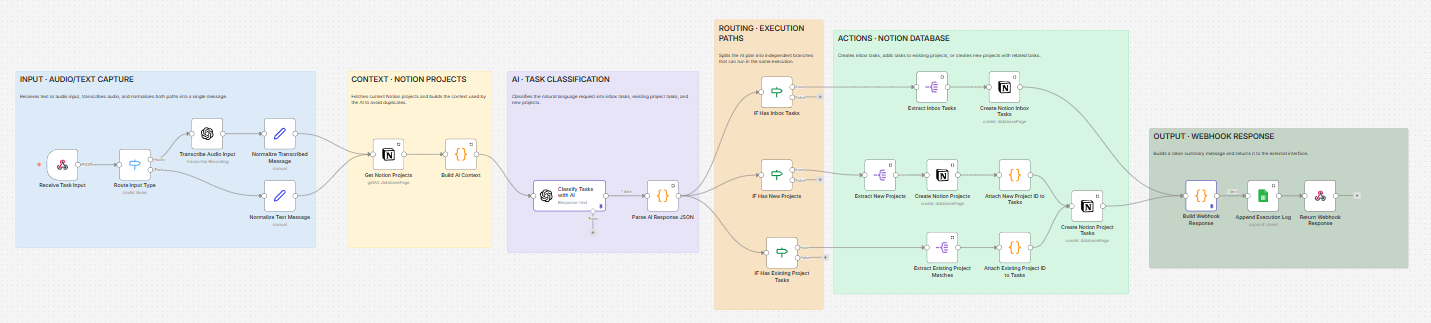
Workflow Overview
The workflow is organized into visual blocks to make the execution path easy to understand:
- Input · Audio/Text Capture — Receives text or audio input by webhook. Audio is transcribed and both paths are normalized into a single message.
- Context · Notion Projects — Fetches the current Notion projects and builds the context used by the AI to avoid duplicates and route tasks correctly.
- AI · Task Classification — Converts the natural language request into structured JSON, separating inbox tasks, existing project tasks, and new projects.
- Routing · Execution Paths — Splits the AI plan into independent branches so a single request can trigger multiple actions at once.
- Actions · Notion Database — Creates inbox tasks, adds tasks to existing projects, or creates new projects with their related tasks.
- Output · Webhook Response — Builds a clean summary message and returns it to the external interface.
Key Features
- Natural language task capture from text or voice.
- Automatic transcription for audio inputs.
- Semantic project matching against existing Notion projects.
- New project creation only when explicitly requested by the user.
- Task creation in Notion with descriptions, deadlines, and recurrence metadata.
- Support for multiple execution paths in a single request.
- Professional response summary returned to the calling interface.
- Google Sheets execution logs for monitoring and portfolio metrics.
- Global error workflow to capture failed executions.
AI Prompt Design
A key part of the system is the prompt used to transform unstructured input into a reliable JSON plan.
The prompt instructs the model to:
- Extract every task from the user message.
- Compare tasks against existing Notion projects using name and description.
- Assign tasks to existing projects only above a confidence threshold.
- Avoid forcing matches when uncertain.
- Create new projects only when explicitly requested.
- Interpret relative dates such as “today”, “tomorrow”, or “next Monday”.
- Apply global date context such as “tasks for today” to all related tasks.
- Return only valid JSON with no extra text.
This prompt design makes the automation flexible enough for natural input, while still predictable enough to drive database actions safely.
Example Input
I need to create some tasks for today. Research hosting options for the
new web project. Add unit tests to the authentication module in the
Mobile App project and prepare the sprint review presentation for
Friday.
Example Output
{
  "existing_project_matches": [
    {
      "project_id": "abc-123",
      "project_name": "Mobile App",
      "match_confidence": 0.92,
      "tasks": [
        {
          "name": "Add unit tests to authentication module",
          "description": "Write and integrate unit tests for the auth module.",
          "deadline": "2026-05-08T07:00:00Z"
        }
      ]
    }
  ],
  "new_projects": [],
  "independent_tasks": [
    {
      "name": "Research hosting options for new web project",
      "description": "Evaluate different hosting providers for the upcoming web project.",
      "deadline": "2026-05-08T07:00:00Z"
    },
    {
      "name": "Prepare sprint review presentation",
      "description": "Prepare slides and demo for the sprint review on Friday.",
      "deadline": "2026-05-10T07:00:00Z"
    }
  ]
}
Observability and Logging
To make the automation reliable in daily use, I added a logging layer with Google Sheets.
Each successful execution stores: timestamp, execution ID, input type, original message, number of projects found, inbox tasks created, existing project tasks created, new projects created, new project tasks created, total tasks created, status, and response message.
A separate global error workflow captures failed executions, including the failing workflow, node name, error message, stack trace, execution URL, and execution mode.
This gives the project a basic observability layer similar to what a production automation would need.
Product Evolution
The automation evolved through several iterations based on real usage:
- Initial version — The first version extracted tasks from text or audio and created them directly in Notion.
- Project creation — I added support for creating new Notion projects and attaching tasks to them.
- Existing project awareness — The workflow started fetching current Notion projects before calling OpenAI, allowing the AI to assign tasks to existing projects.
- Structured routing — The AI output was split into three branches: inbox tasks, existing project tasks, and new projects.
- Professional response — The workflow now returns a summary with how many tasks and projects were created.
- Logging and error handling — Google Sheets logs and a global error workflow were added to monitor executions.
Technical Challenges
The main challenge was making the workflow reliable despite the flexibility of natural language. Some of the problems solved were:
- Normalizing audio and text inputs into the same structure.
- Preventing the AI from creating duplicate projects.
- Matching tasks to existing projects without forcing weak matches.
- Handling nested structures such as projects with multiple tasks.
- Avoiding duplicated task creation when merging branches in n8n.
- Preserving the relationship between newly created Notion projects and their generated tasks.
- Returning a response format compatible with the external input system.
Result
- Daily-use automation: The system is already usable as a personal productivity tool.
- Reduced manual task entry: Natural language input is automatically converted into structured Notion data.
- Project-aware organization: Tasks can be routed to existing projects instead of creating duplicates.
- Self-hosted and extensible: The workflow runs on a VPS and can be expanded with additional services.
- Portfolio-ready architecture: The workflow includes visual grouping, clear node naming, logging, and error handling.